
Appearance
User Guide
Overview
expressCode is a professional code editor panel for After Effects that allows you to:
- Edit expressions with IntelliSense and syntax highlighting
- Write and run ExtendScript scripts
- Organize expressions and scripts in a library system
- Apply expressions to multiple properties simultaneously
- Use TypeScript for script development
Interface Overview
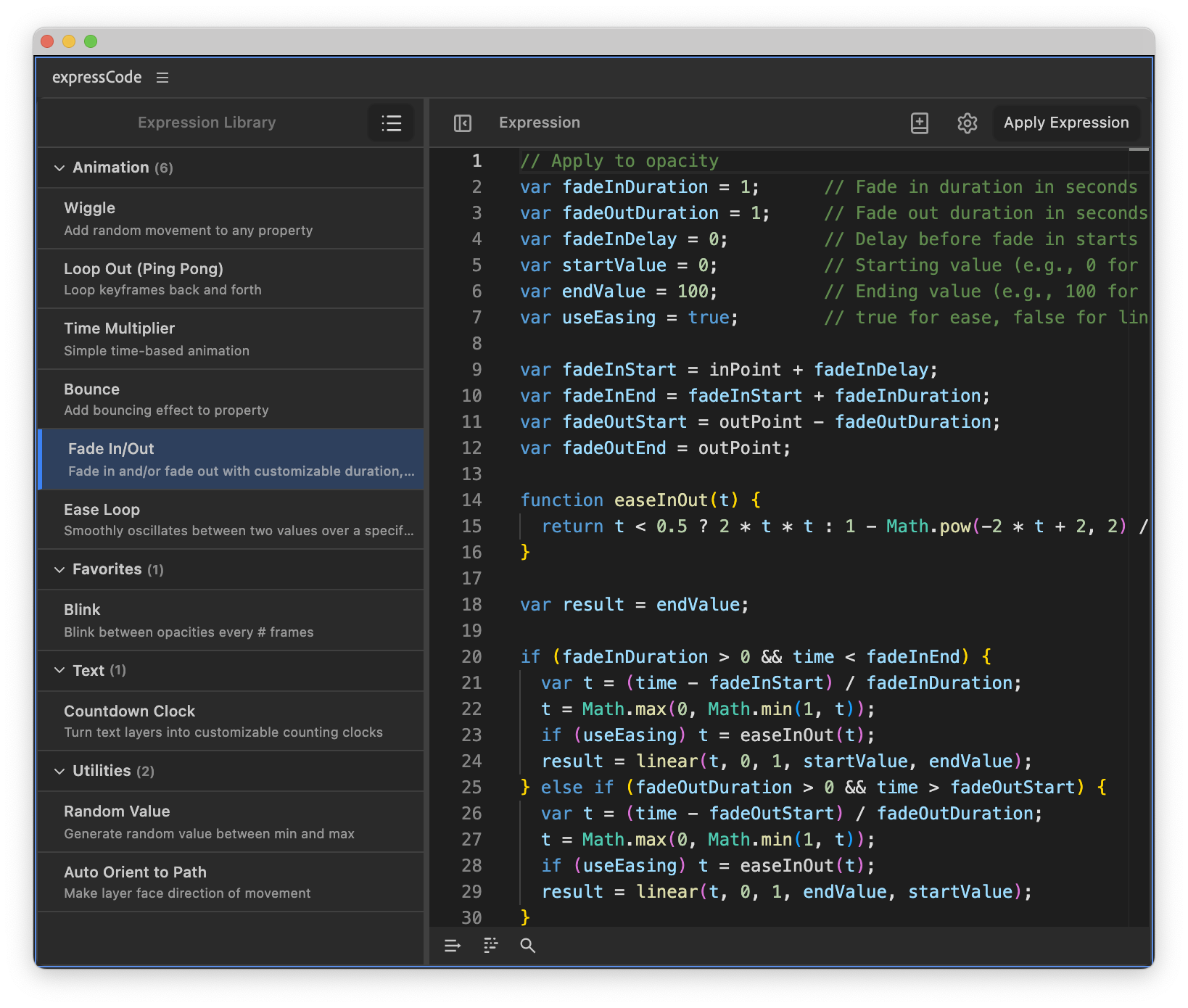
The expressCode panel is divided into two main sections:
- Navigation Panel (left) - Shows expressions from the active comp or your library
- Editor Panel (right) - Monaco code editor with header and footer controls
Header Controls
- / Sidebar Toggle: Show/hide the expression/library list panel
- Expression / Script: Text button to toggle between Expression and Script modes
- Save to Library: Saves the current code to your expression/script library
- Settings Button: Opens the settings dialog
- Apply Expression / Run Script: Applies the expression to selected properties or runs the script
Footer Controls
- / Word Wrap Toggle: Enable/disable word wrapping
- Format Document: Auto-format your code
- Find: Open the find/replace dialog (Cmd/Ctrl + F)
- Insert Property Reference (Expression mode only): Inserts an expression reference to the currently selected property in After Effects at the cursor position. Modifier keys override the defaults set in Settings for that single click:
- ⌥ / ⎇ click: Force index form, e.g.
effect("Slider Control")(1) - ⌘ / Ctrl click: Force match name form, e.g.
effect("Slider Control")("ADBE Slider Control-0001") - ⇧ click: Toggle the relative references preference — uses
thisLayerinstead ofthisComp.layer("...")(or vice versa) for that click
- ⌥ / ⎇ click: Force index form, e.g.
- JS / TS (Script mode only): Switch between JavaScript and TypeScript
Expression List Footer Controls
The expression list includes a footer bar with additional controls (visible only in Expression Comp mode):
- Refresh Selected Expression: Reload the currently selected expression from After Effects (Shift + Cmd/Ctrl + R)
- Select All Identical Expressions: Select all expressions in the comp that match the currently selected expression
- Reveal in Timeline: Reveal the selected expression's property in the After Effects timeline
- Search: Filter and search expressions in the list
Working with Expressions
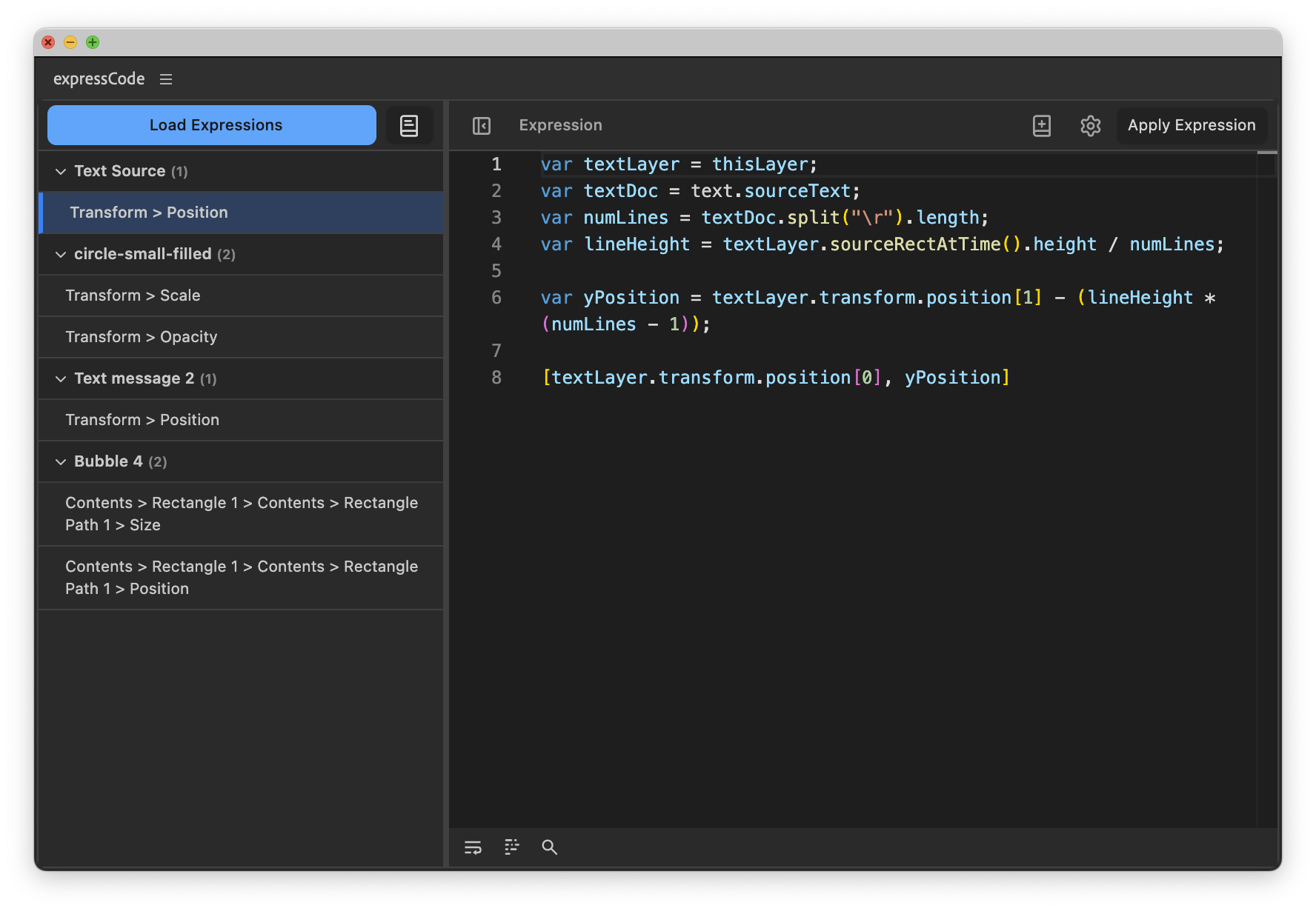
Loading Expressions from a Composition
- Make sure you have an active composition with expressions
- Click the Load Expressions button in the navigation panel
- All expressions in the comp will be listed, grouped by layer
Selecting and Editing Expressions
- Click on any expression in the list to load it into the editor
- Edit the expression in the Monaco editor
- As you type, real-time validation will check for errors
- IntelliSense will provide auto-completion suggestions
Multi-Selection
You can select multiple expressions to apply changes to all at once:
- Cmd/Ctrl + Click: Add/remove individual expressions from selection
- Shift + Click: Select a range of expressions
When multiple expressions are selected:
- The editor shows the first selected expression's code
- Applying changes will update all selected expressions
- A warning appears if selected expressions have different code
Applying Expressions
There are several ways to apply expressions:
- To a selected expression: Select an expression from the list and click Apply
- To multiple expressions: Multi-select expressions and click Apply to update all
- To a property in AE: Select a property in After Effects and click Apply
- To multiple layers: Use a library item with a default property (see Library section)
Real-time Validation
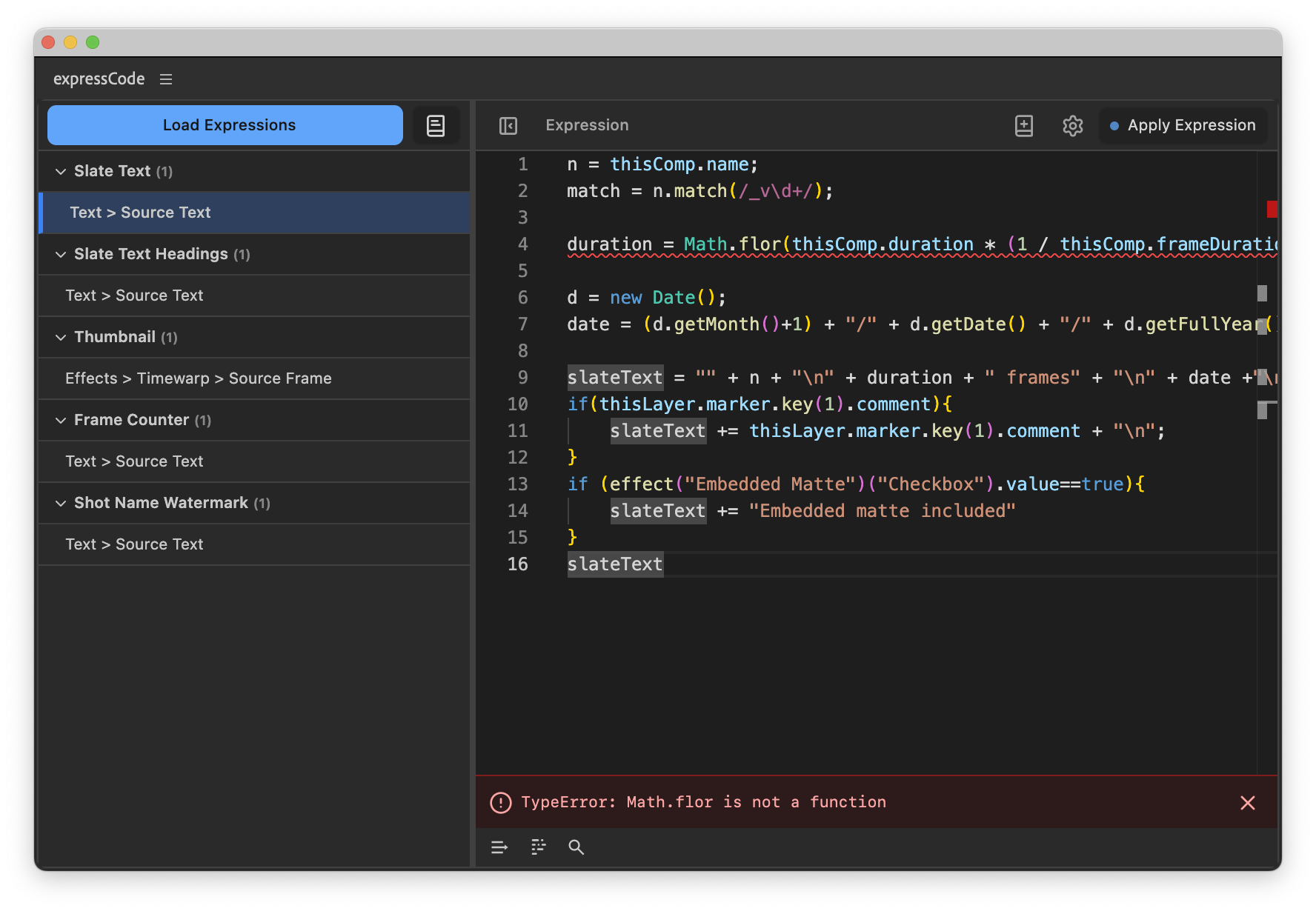
In Expression mode, expressCode validates your code in real-time:
- Errors appear in a banner at the bottom of the editor
- Validation happens 1 second after you stop typing
- Uses the actual After Effects expression engine for accuracy
Searching Expressions
Use the search button in the expression list footer to quickly find expressions in your comp:
- Search by layer name, property name, or expression code
- Results are filtered in real-time as you type
- Works in both Comp Expressions and Library views
- Clear the search to return to the full list
Refreshing Expressions
Click the refresh button (or use Shift + Cmd/Ctrl + R) to reload the currently selected expression from After Effects. This is useful when:
- You've made changes to the expression in After Effects and want to see them in expressCode
- You want to discard unsaved changes in the editor
- The expression has been modified by another script or process
Selecting Identical Expressions
The "Select All Identical Expressions" button automatically selects all expressions in your comp that match the currently loaded expression. This is perfect for:
- Batch updating multiple instances of the same expression
- Finding all layers that use a specific expression
- Making sweeping changes across your comp efficiently
Revealing Expressions in Timeline
Click the "Reveal in Timeline" button to jump directly to the selected expression's property in the After Effects timeline. This helps you:
- Quickly locate which layer and property an expression belongs to
- Navigate between expressCode and the timeline seamlessly
- Verify the context of an expression before editing
Auto-Highlighting Expressions
When you select layers in the After Effects timeline, expressCode automatically scrolls to and highlights their expressions in the list. This feature:
- Syncs your workflow between expressCode and After Effects
- Makes it easy to find expressions for specific layers
- Can be disabled in the settings if you prefer manual selection
Working with Scripts
Script Mode
Switch to Script mode using the toggle in the header to write and run ExtendScript scripts.
Running Scripts
- Write your script in the editor
- Click the Run Script button (same as Apply in Expression mode)
- The script executes in After Effects
- Success/error status appears in the header
JavaScript vs TypeScript
In Script mode, you can choose between JavaScript and TypeScript:
- JavaScript: Direct ExtendScript (ES3)
- TypeScript: Full TypeScript with type checking, transpiles to ES3
Toggle between languages using the footer controls.
TypeScript Features
When using TypeScript in Script mode:
- Full type checking with IntelliSense
- Hover documentation for After Effects API
- Parameter hints and auto-completion
- Automatic transpilation to ES3-compatible code
- ES5 method transforms (see ES5 Helper Reference)
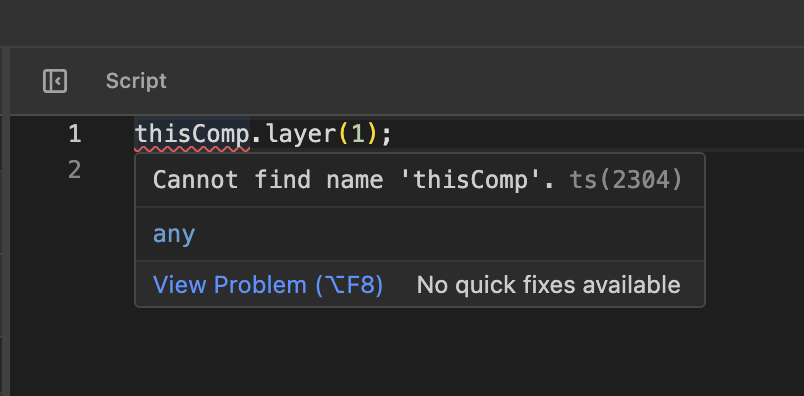
Error Handling
Script errors are caught and displayed with:
- Error message
- Line number
- Stack trace (when available)
Library System
The library system lets you save and organize your favorite expressions and scripts.
Viewing the Library
- Expression mode: Click the Book icon to toggle between Comp Expressions and Library views
- Script mode: Always shows the Script Library
Adding Items to Library
Write or load an expression/script in the editor
Click the Save to Library button in the header
Fill in the dialog:
- Name: A descriptive name for the item
- Description: Optional details about what it does
- Category: Choose or create a category
- Default Property (Expressions only): Optional property match name for batch application
Click Save
Default Property for Expressions
Setting a default property allows you to apply an expression to multiple selected layers:
- Set a default property when saving to library (e.g.,
ADBE Transform Group|ADBE Position) - Select multiple layers in After Effects
- Select the library item and click Apply
- The expression will be applied to the default property on all selected layers
To auto-fill the default property:
- Select a property in After Effects
- Click the arrow button next to the Default Property field
Editing Library Items
- Hover over a library item in the list
- Click the Edit button (pencil icon)
- Modify the name, description, category, or default property
- Click Save
Note: Editing metadata doesn't change the code. To update code:
- Select the library item
- The "Save to Library" button will show "Update or Add New" dialog
- Choose "Update Existing" to replace the code
Deleting Library Items
- Hover over a library item
- Click the Delete button (trash icon)
- Confirm the deletion
Categories
Library items are organized by categories:
- Categories are sorted alphabetically
- Categories are collapsible
- You can create new categories when saving items
- Separate categories for expressions and scripts
Advanced Features
IntelliSense
expressCode provides full IntelliSense for the After Effects API:
Expression Mode IntelliSense: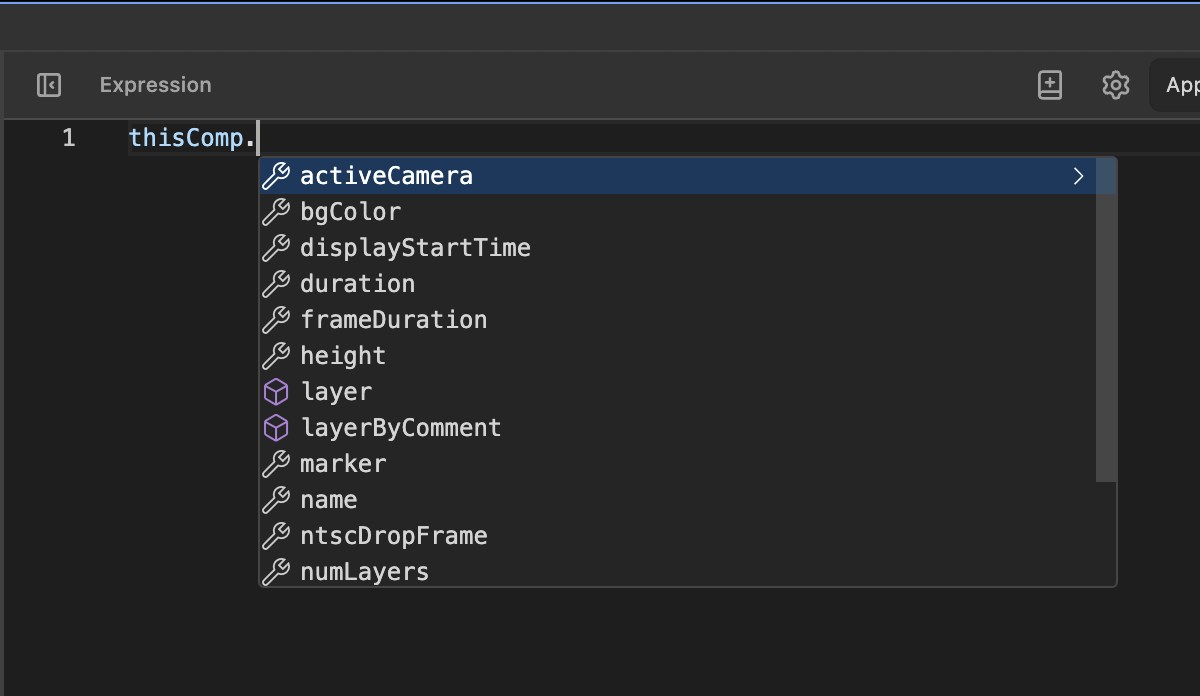
Script Mode IntelliSense: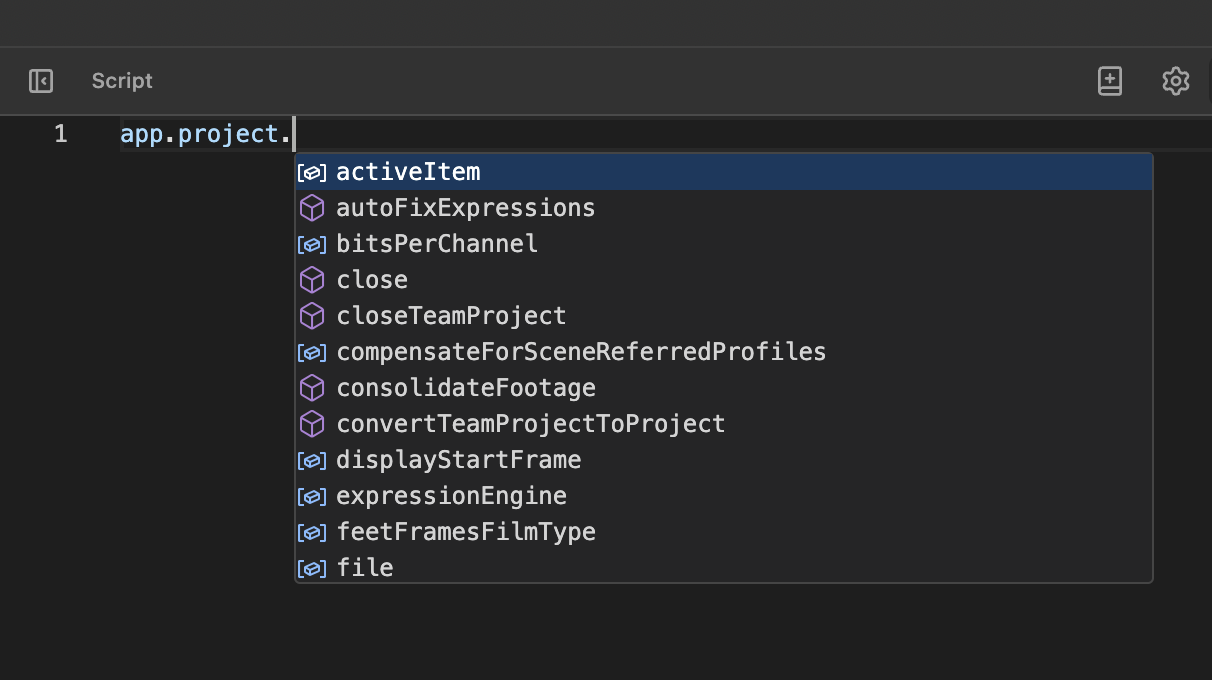
- Auto-completion: Type to see suggestions (e.g., type
app.to see all app methods) - Parameter hints: See function parameters as you type
- Hover documentation: Hover over any API to see documentation
- Go to definition: Not available (read-only API definitions)
Settings
Click the settings icon to access:
- Storage Location: Where library files are saved (defaults to user data folder)
- Skip Layer Names: Comma or line-separated list of layer names to exclude when loading expressions
- Property Reference Insertion: Controls how the Insert Property Reference button behaves by default:
- Default effect parameter format: Choose how effect parameters are written when no modifier key is held — Display name (e.g.
("Slider")), Match name (e.g.("ADBE Slider Control-0001")), or Index (e.g.(1)) - Prefer relative references on the same layer: When enabled, inserting a reference to a property on the same layer as the selected expression will use
thisLayerinstead ofthisComp.layer("...")
- Default effect parameter format: Choose how effect parameters are written when no modifier key is held — Display name (e.g.
- Library Categories: Create, edit, or delete categories for library items
Responsive Design
expressCode adapts to narrow panel widths:
- Below 600px, it switches to a single-panel view
- Toggle between navigation and editor using the back arrow and code icon buttons
- Perfect for working with limited screen space
Next Steps
- Explore the ES5 Helper Reference to learn about modern JavaScript features in scripts
- Check out the TypeScript Reference for TypeScript-specific features
- See the FAQ for common questions