
Appearance
AI Assistants (MCP)
expressCode 1.3 includes an optional MCP server. MCP (Model Context Protocol) is the open standard AI apps use to connect to tools. Once it's on, the AI app you already use (Claude, ChatGPT Codex, Gemini CLI or a local model in LM Studio) can work in After Effects through the expressCode panel. It can read your project, write and apply expressions, run scripts, and render frames to check its own work.
Your AI, your account
expressCode doesn't include an AI model or an AI service. You connect the AI app you already pay for, so there are no API keys to set up and no extra AI costs from expressCode.
The MCP server is off until you turn it on. It only listens on your own computer (127.0.0.1), and expressCode itself sends nothing anywhere. Anything your AI app reads through expressCode is handled by that app and its provider under your account's terms.
What You Can Ask For
Ask in plain language in your AI app, for example:
- "Make the logo layer bounce in with an overshoot expression."
- "Add a wiggle to every selected layer's position, but keep it subtle."
- "Write a script that renames all the text layers in this comp after their contents."
- "Look at frame 120 of the Main comp and tell me what's clipping."
Behind the scenes, the AI looks up the After Effects expression and scripting references, inspects your layers, writes the code, applies or runs it, and can render a frame to see the result and fix what's wrong.
Requirements
- After Effects with the expressCode panel open. The server runs inside the panel, so AI apps can only connect while it's open.
- An AI app that supports MCP, such as Claude Code, Claude Desktop, ChatGPT Codex, Gemini CLI or LM Studio.
- Node.js is only needed for the Node bridge backup connection. The recommended HTTP connection needs nothing else installed.
Turning It On
- Open Settings (gear icon in the editor header).
- Under Optional: Connect Your Own AI, click Open MCP Settings.
- Check Enable MCP server inside the panel.
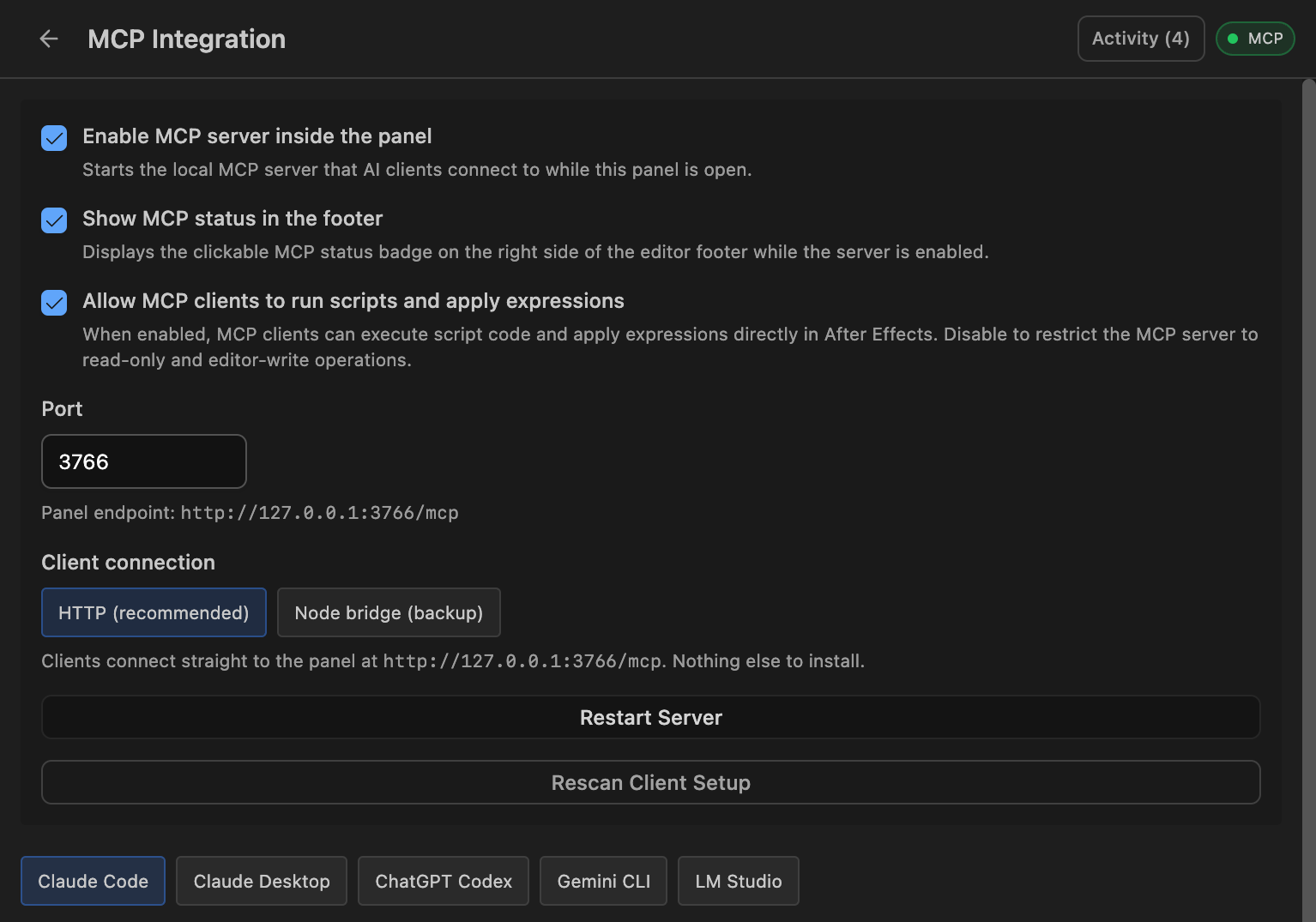
When the server is running, a green MCP badge appears in the editor footer. Click it to get back to the MCP settings at any time.
MCP Settings
| Setting | What it does |
|---|---|
| Enable MCP server inside the panel | Starts the local MCP server while the panel is open. Off by default. |
| Show MCP status in the footer | Shows the clickable MCP status badge in the editor footer while the server is enabled. |
| Allow MCP clients to run scripts and apply expressions | When unchecked, AI apps can still read your project, look up references, render frames and write to the editor, but they can't run scripts or apply expressions in After Effects. |
| Port | The port the server listens on. Defaults to 3766. The endpoint is shown below it, e.g. http://127.0.0.1:3766/mcp. |
| Client connection | How AI apps connect: HTTP (recommended) or Node bridge (backup). The setup buttons for each app use this choice. |
| Restart Server | Restarts the MCP server, e.g. after changing the port. |
| Rescan Client Setup | Checks each AI app's configuration again and updates the status shown on each tab. |
Connecting Your AI App
The tabs at the bottom of the MCP settings page set up each supported app for you. Each tab shows whether expressCode is already configured. One click adds or updates the entry, and a copyable snippet is there if you'd rather edit the configuration yourself.
INFO
Before changing an app's configuration file, expressCode saves a backup next to it (ending in .bak). Your other MCP servers and settings in that file are left as they are.
Claude Code
Click Add to Claude Code. expressCode uses the claude command-line tool to add the server for all your projects (user scope). Then start a new Claude Code session, or run /mcp in an existing one to reconnect.
To add it yourself, run:
bash
claude mcp add --transport http --scope user expresscode http://127.0.0.1:3766/mcpClaude Desktop
Click Install Extension. Claude Desktop opens its install screen; confirm there. You can also click Show Bundle File and drag expresscode.mcpb into Claude Desktop. Claude Desktop runs the extension with its own built-in Node.js, so there's nothing else to install.
If you change the port in expressCode, set the same port in Claude Desktop under Settings > Extensions > expressCode.
TIP
Claude Desktop's config file (claude_desktop_config.json) can't connect over HTTP, so the extension is the recommended way. The config-file option on this tab is available when the client connection is set to Node bridge. Use one or the other, not both, or expressCode's tools will appear twice in Claude.
ChatGPT Codex
Click Add to Codex. expressCode adds an [mcp_servers.expresscode] section to ~/.codex/config.toml:
toml
[mcp_servers.expresscode]
url = "http://127.0.0.1:3766/mcp"
Gemini CLI
Click Add to Gemini CLI. expressCode adds the server to Gemini CLI's user settings (~/.gemini/settings.json), so it's available in every project. Restart Gemini CLI afterwards, or run /mcp to check the connection.
json
{
  "mcpServers": {
    "expresscode": {
      "httpUrl": "http://127.0.0.1:3766/mcp"
    }
  }
}
LM Studio
Click Add to LM Studio. expressCode adds the server to LM Studio's mcp.json:
json
{
  "mcpServers": {
    "expresscode": {
      "url": "http://127.0.0.1:3766/mcp"
    }
  }
}
Choose a model that supports tool use. Smaller local models may struggle with longer scripts.
Other MCP Apps
Any app that supports MCP over Streamable HTTP can connect to:
http://127.0.0.1:3766/mcpFor apps that only support local (stdio) servers, use the Node bridge.
Node Bridge (Backup)
If an app can't connect over HTTP, switch Client connection to Node bridge (backup). The app then launches a small bridge script (expresscode-mcp.js, included with expressCode) using Node.js, and the bridge talks to the panel. The MCP settings page detects your Node.js installation and fills in the right paths in each app's setup and snippets. If Node.js isn't found, use Download Node.js and then Rescan Node.
What the AI Can Do
These are the tools expressCode gives to AI apps:
| Tool | What it does |
|---|---|
get_project_info | Reads the project name, active composition and its settings. |
get_selected_property | Reads the property or layer selected in After Effects. |
get_layer_properties | Reads a layer's properties: transform values, expressions, effects and their parameters, and masks. |
search_expression_reference | Looks up the After Effects expression language: methods like wiggle, loopOut and ease, attributes like thisComp and time. |
search_script_reference | Looks up the After Effects scripting (ExtendScript) API, e.g. CompItem, Layer or Property. |
apply_expression | Applies an expression to the selected property, the expressions selected in the panel, or the selected layers via the selected library item's default property. |
run_script | Runs an ExtendScript script in After Effects and returns its result. TypeScript is transpiled first. |
render_frame | Renders a frame of a composition and returns it as an image, so the AI can see its work. Guide layers aren't included, just like a final render. |
get_editor_content | Reads the code in the expressCode editor. |
set_editor_content | Puts code in the expressCode editor and optionally switches between expression and script mode. |
get_library_items | Reads your saved expression and script library items. |
apply_expression and run_script are only available while Allow MCP clients to run scripts and apply expressions is checked.
How It Works With Your Editor
- Your editor is left alone. When an AI app applies an expression or runs a script, the code goes straight to After Effects. The code in your editor isn't replaced, unless the AI uses
set_editor_contentto put code there for you. - No dialogs. Errors from scripts the AI runs are sent back to the AI instead of popping up an After Effects alert, so it can fix its own mistakes without blocking your work.
- Expressions stay in sync. If an AI app changes the expression you have open in the editor and you haven't edited it, the editor updates. If you have unsaved edits, a banner lets you Load new version or Keep my edits.
- Undo works. Ask your AI to wrap its changes in an undo group (it's told to by default), so a single Edit > Undo reverts what it did.
Activity Log
Every tool call an AI app makes is listed on the Activity page. Open it with the Activity button at the top of the MCP settings page.
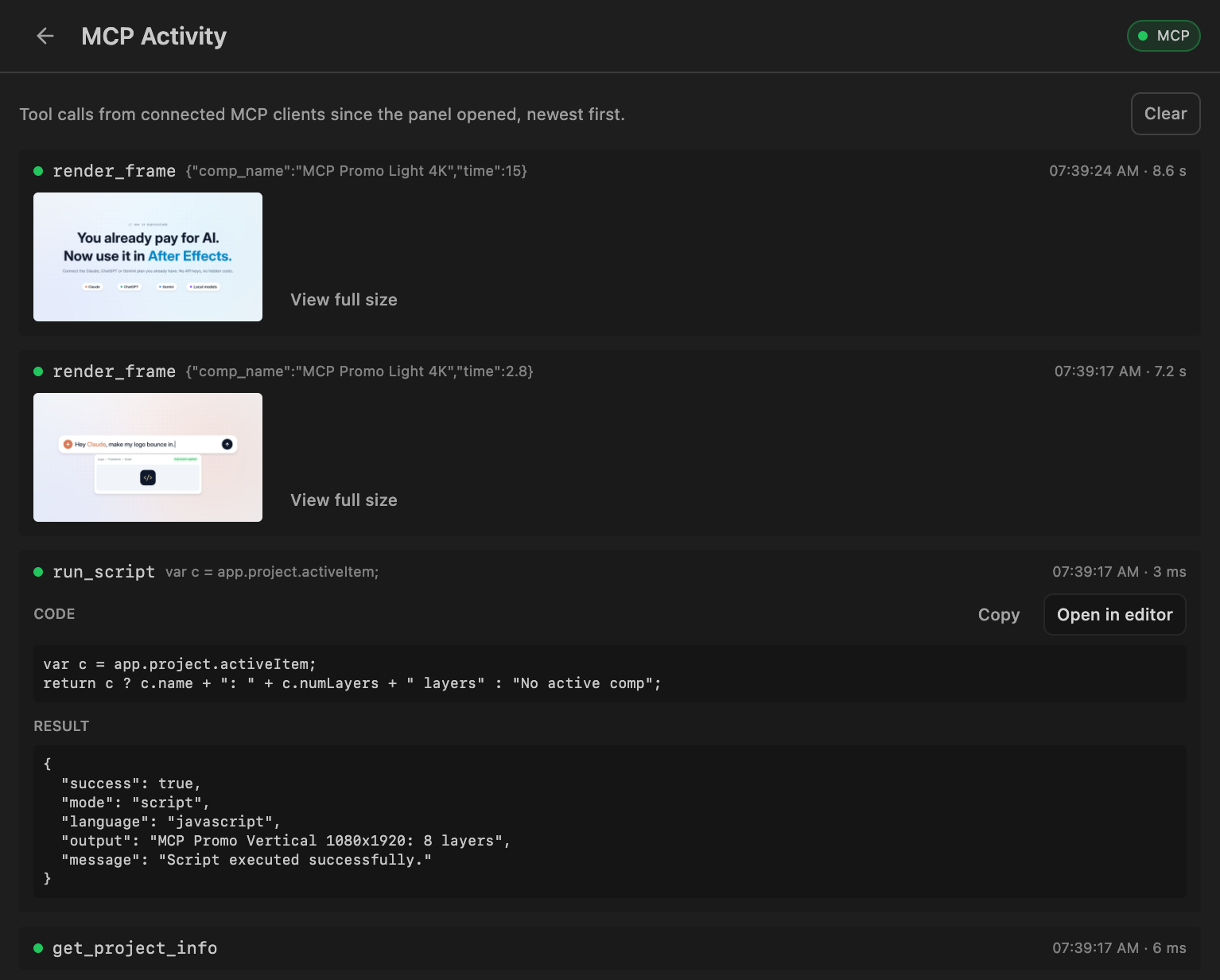
- Each row shows the tool, a summary of what was sent, the time, and how long it took. A green dot means it succeeded; red means it failed.
- Frames from
render_frameshow as thumbnails. Click one, or View full size, to see it larger. - Click a row to see the full code and result. Copy copies the code, and Open in editor loads it into the expressCode editor so you can read, change or reuse it. If the editor already has other code in it, you're asked before it's replaced.
- The log covers the current panel session and is cleared when the panel closes. Use Clear to empty it sooner.
Troubleshooting
My AI app can't connect. Make sure the expressCode panel is open in After Effects and Enable MCP server inside the panel is checked. The MCP badge in the footer should be green. Then restart your AI app, or reconnect from its MCP menu (/mcp in Claude Code and Gemini CLI).
The port is already in use. Another app is using port 3766. Pick a different port in the MCP settings, click Restart Server, then use the setup buttons again so each AI app gets the new port. For the Claude Desktop extension, also change the port in Claude Desktop under Settings > Extensions > expressCode.
The AI says it can't run scripts or apply expressions. Check Allow MCP clients to run scripts and apply expressions in the MCP settings. Some apps need to reconnect before they see the newly available tools.
A tab says the configuration file can't be read. The app's configuration file contains invalid JSON or TOML, so expressCode won't change it. Fix the file (or restore it from a backup), then click Rescan Client Setup.
Rendering a frame is slow.render_frame renders at full quality, so heavy comps (4K, lots of effects, motion blur) can take several seconds per frame.